 FTP Files
Connect to a NAS, Linux or Raspberry Pi
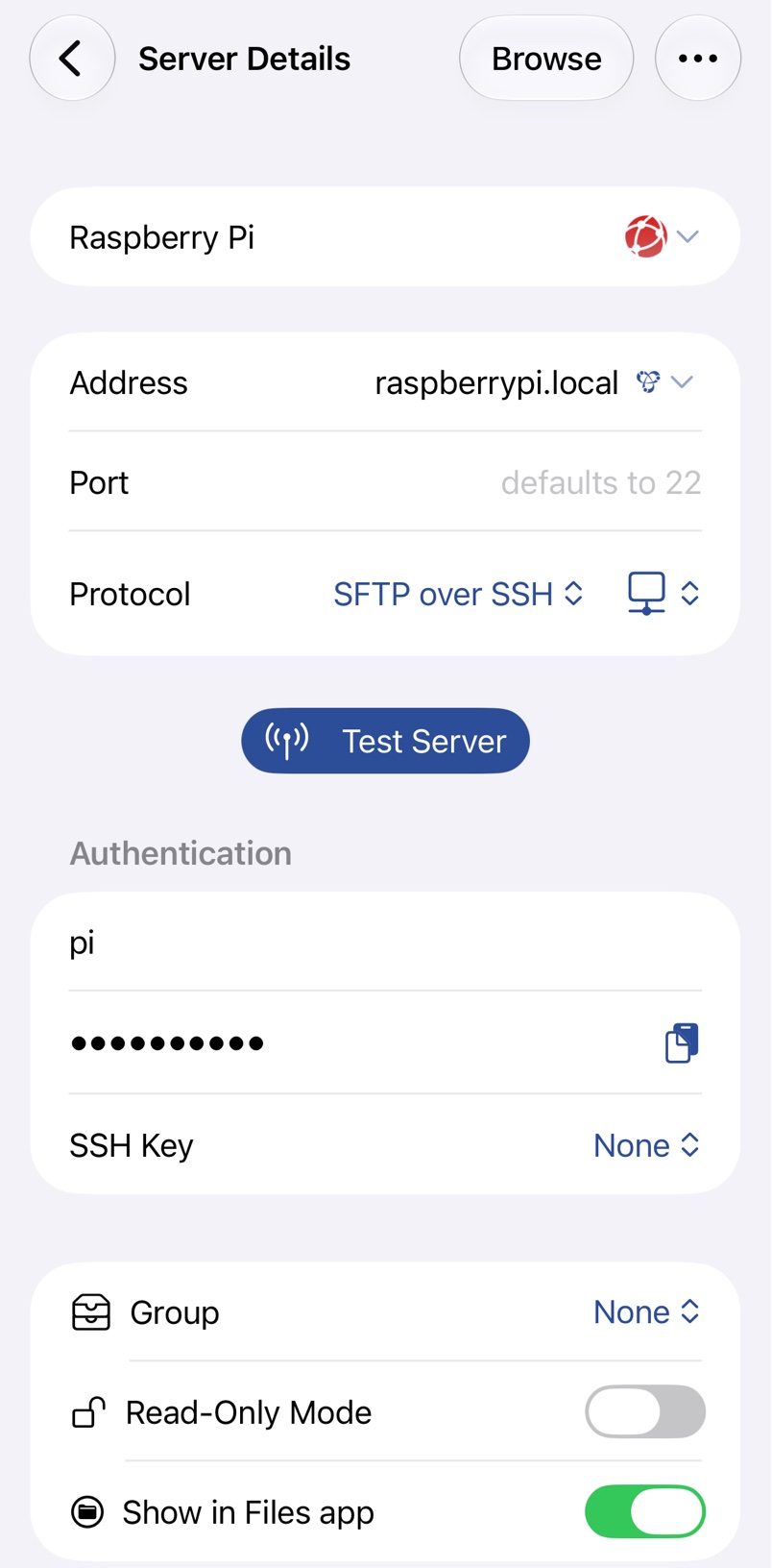
A NAS, a Linux machine and a Raspberry Pi all run an SSH server, or can with one setting, and SFTP is the best way to reach them. On the same network, use the device's local name, such as nas.local, or its IP address.
Synology
In DSM, open Control Panel → File Services, select Enable SFTP service on the FTP tab and click Apply. Your account also needs SFTP allowed under Applications in Control Panel → User & Group. Shared folders appear at the top level, so set Directory to / or a shared folder such as /photo, not a path starting with /volume1.
QNAP
In QTS, open Control Panel → Network & File Services → Telnet / SSH, select Allow SSH connection and Enable SFTP, and click Apply. By default only administrators can sign in over SSH.
Linux
Most Linux servers run OpenSSH already. On Ubuntu or Debian, install it with sudo apt install openssh-server. Sign in with your Linux user name and password.
Raspberry Pi
SSH is off in Raspberry Pi OS. Turn on Enable SSH in Raspberry Pi Imager's customisation settings when you write the card, or later with sudo raspi-config. A fresh install answers to raspberrypi.local unless you named it otherwise.
Finding servers with Bonjour
The Bonjour button next to Address lists servers on your network that announce FTP, FTPS or SFTP, though not every device does.
Troubleshooting
- Local Network Access Required: allow FTP Files to use the local network; see Connection Errors.
- A
.localname isn't found away from home: use a VPN or port forwarding, as Connection Errors explains. - Incorrect username or password: on a NAS, check that the account may use SFTP or SSH.