 FTP Files
Add an FTP or SFTP Server
A server in FTP Files is an address, a protocol and a login. Fill in what you know and test it: FTP Files finds the protocol and asks for anything missing. Servers and passwords sync to your other devices with iCloud Keychain.
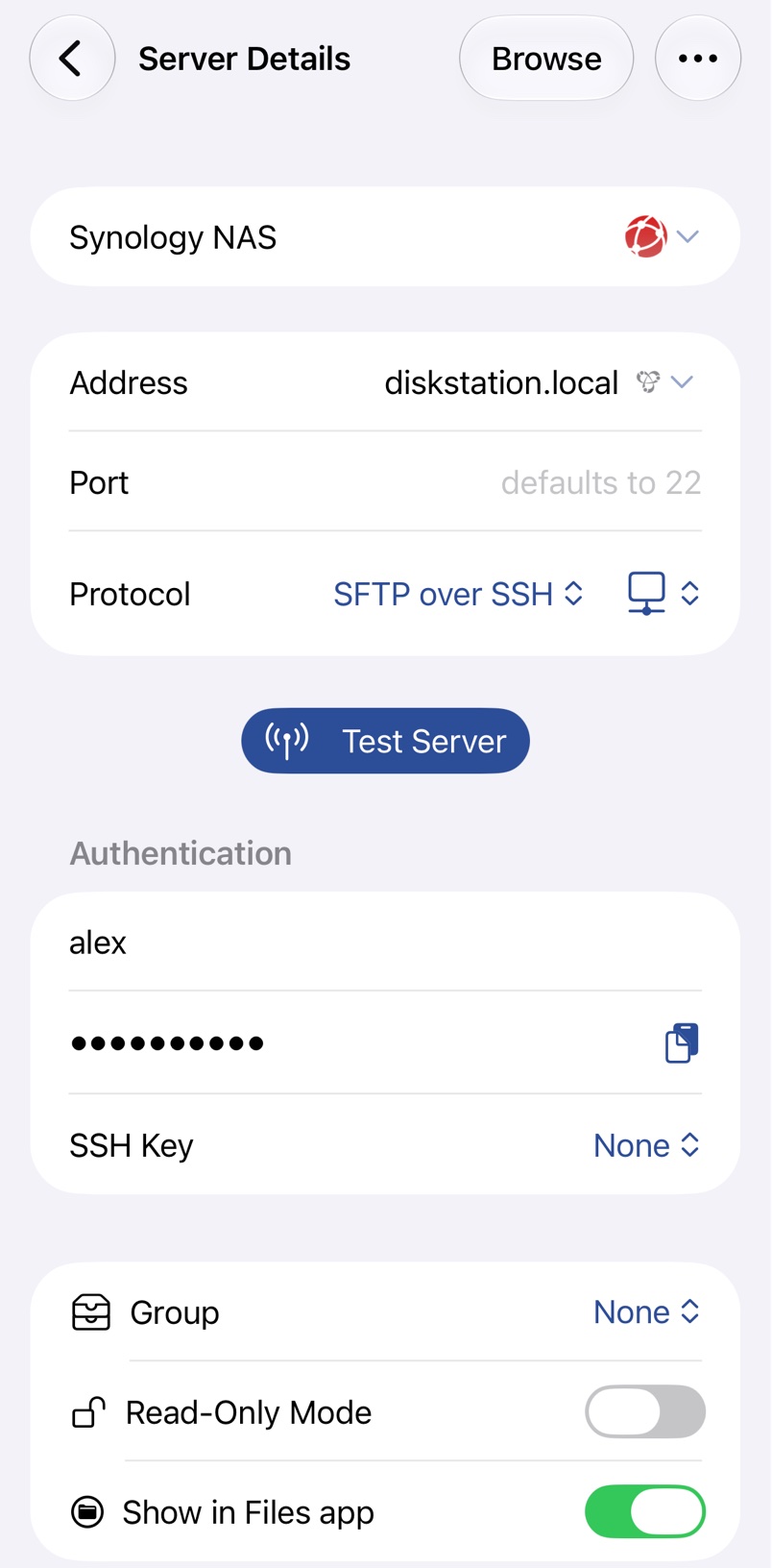
1. Create the server
Tap New Server, or press ⌘N, and type the Address, such as nas.local or ftp.example.com. A pasted URL fills in the other fields too:
sftp://anna@nas.local:2222/~/Documents2. Pick the protocol
Leave Protocol at Automatic and the test finds it, or pick one yourself; see Which protocol? below.
3. Test
Tap Test Server, or Test on a Mac. The first time, you may have to approve a host key or trust a certificate; see Host Keys and FTPS Certificates. For SFTP you can pick an SSH Key instead of a password; see SSH Keys.
When it works, Browse here opens the server in FTP Files and Show in Files app in the Files app, or Browse and Finder on a Mac. If it fails, see Connection Errors.
4. Optional settings
- Directory is where browsing starts; SFTP servers start at
~/, your home folder. - Website adds Copy Link; see Web Hosting.
- Read-Only Mode stops FTP Files, the Files app and Finder from changing anything.
- Show in Files app, or Show in Finder on a Mac, decides whether the server appears there; see Files App and Finder.
On a Mac, click Save.
Which protocol?
Most servers offer one or two of these. Use SFTP whenever the server has it.
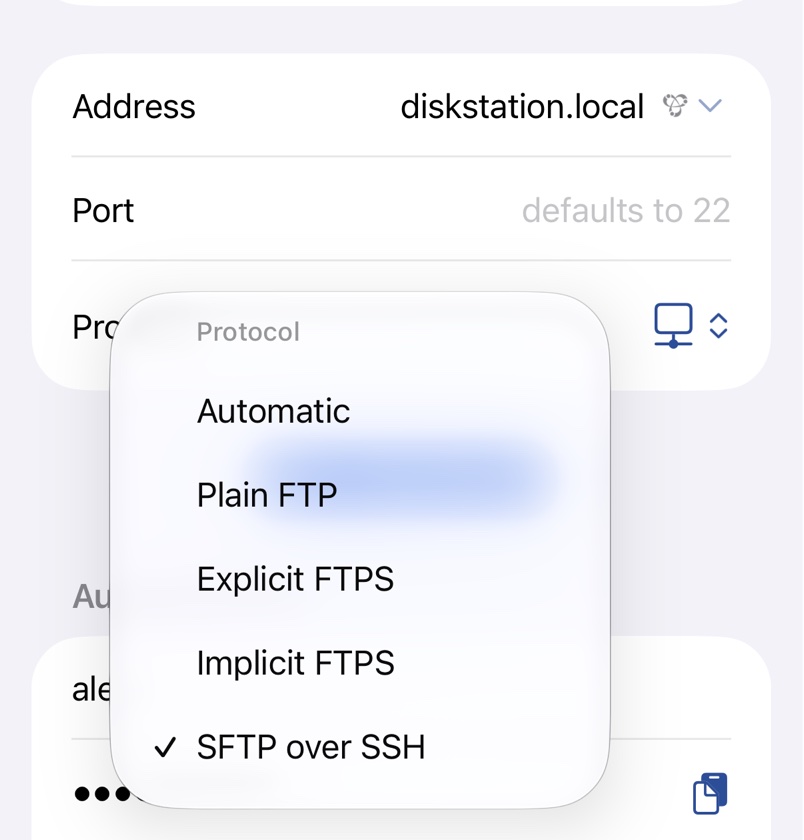
SFTP over SSH
Everything is encrypted and travels over one SSH connection on port 22, which gets through routers and firewalls easily. It works with SSH keys and host keys. A Mac with Remote Login, Linux, a Raspberry Pi and most NAS boxes offer it.
Explicit FTPS
Starts as FTP on port 21 and switches to TLS encryption before the password is sent, with a certificate to prove who the server is. Common at web hosts.
Implicit FTPS
The older variant, encrypted from the start and usually on port 990. Use it only when the server asks for it.
Plain FTP
Sends your password and files unencrypted. Only use it on a network you trust.
Automatic
The test tries Explicit FTPS, SFTP over SSH, Implicit FTPS and Plain FTP in turn and saves the first that answers. Until then, browsing gives Test this server to resolve its connection protocol, which is set to Automatic.
Ports and passive mode
Leave Port empty for the protocol's default, or enter the server's port and Automatic tries every protocol on it.
FTP and FTPS open a second connection for each listing and transfer, and FTP Files always uses passive mode, so the server must accept those connections on its passive port range. If you can log in but folders never list, open that range in the server's firewall and, for a server at home, forward it on the router with port 21. Encryption hides these ports from routers that open them by themselves, so FTPS needs them forwarded. SFTP needs none of this.