 FTP Files
Folder Sync
Folder Sync keeps a folder on your device and one on a server the same, by hand or on a schedule, merging text files changed on both sides.
Folder Sync is a Pro feature; see Free and Pro.
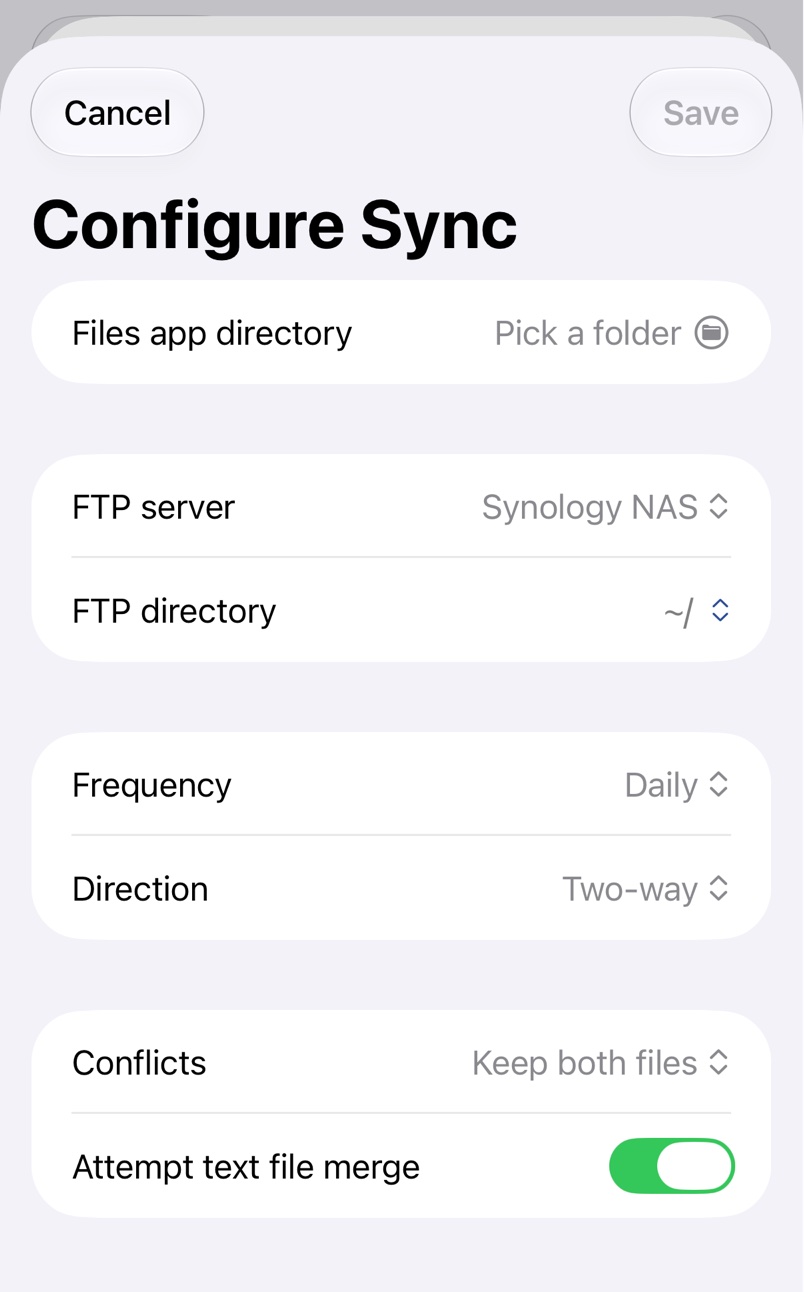
1. Pick both folders
Open Sync in Settings, or the Sync tab on a Mac, and tap Add. Pick a folder on your device under Files app directory, or Finder directory on a Mac, then the server under FTP server and its folder under FTP directory. Folders inside the FTP location can't be picked.
2. Choose how it runs
- Frequency: Manual, Hourly, Daily or Weekly.
- Direction: Two-way, Upload only or Download only.
- Conflicts: Keep both files or Keep most recently changed.
- Attempt text file merge first tries to merge text files changed on both sides.
Tap Save.
Running and checking
Each synced folder has Sync Now and Log, and Sync All runs every enabled one. The Sync Status widget shows them on the Home Screen or the Mac desktop, and Shortcuts can run them too; see Shortcuts Automation.
You get Sync not running when a scheduled sync is a day overdue, and Sync Failed when one fails.
Large deletions
A sync that would delete more than half of the synced files, and more than 20, stops so you can review them first, from a notification if it was scheduled.
Troubleshooting
- Background App Refresh is off. Scheduled syncs only run while FTP Files is open; tap Open Settings to turn it on.
- Background helper is disabled. Turn it on under Login Items in System Settings.
- Notifications are disabled for scheduled sync. Tap Open Settings to hear when a scheduled run fails.