 FTP Files
Connect to a Windows PC
Windows 10 and 11 include an OpenSSH Server as an optional feature, which gives you SFTP in a few steps. IIS can serve FTP too, but takes more setting up.
1. Install OpenSSH Server
In Settings, search for Optional features and add OpenSSH Server. Or in PowerShell as administrator:
Add-WindowsCapability -Online -Name OpenSSH.Server~~~~0.0.1.02. Start the server
In the Services app, open OpenSSH SSH Server, set Startup type to Automatic and click Start. Or in PowerShell:
Start-Service sshd
Set-Service -Name sshd -StartupType 'Automatic'
3. Add the server
Use the PC's IPv4 Address from ipconfig, such as 192.168.1.20, with SFTP over SSH. Sign in with the name of your folder under C:\Users and the account's password, not a Windows Hello PIN, then approve the host key; see Host Keys.
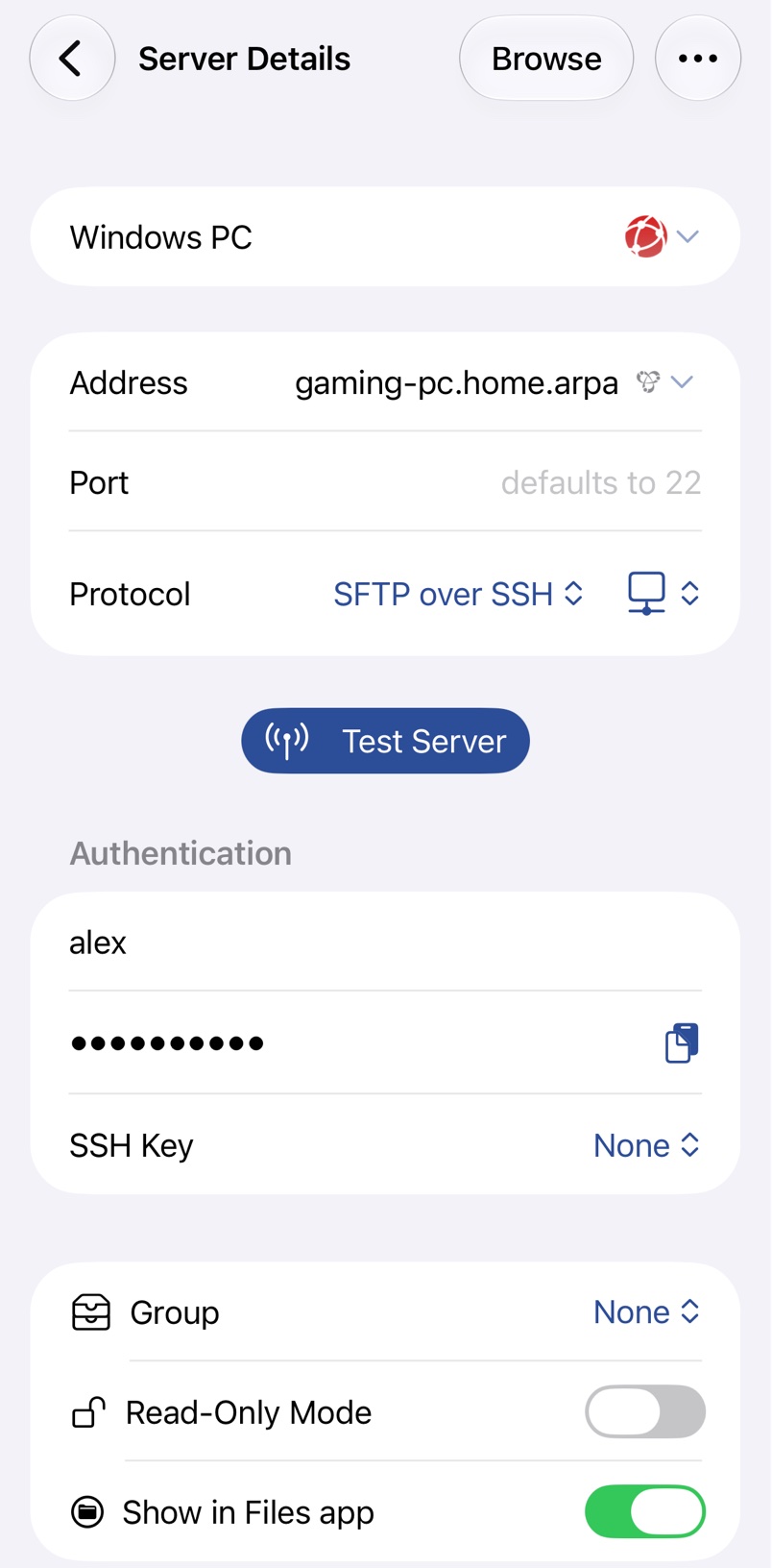
To sign in with a key, SSH Keys says where Windows keeps authorized_keys.
FTP with IIS
Under Turn Windows features on or off, turn on FTP Server and the IIS Management Console inside Internet Information Services. In IIS Manager, choose Add FTP Site and pick Require SSL for Explicit FTPS, Basic authentication, and Read and Write for your user. Then set a Data Channel Port Range under FTP Firewall Support and let it through the firewall, or folders never list.
Troubleshooting
- The connection times out: check that the OpenSSH SSH Server service is running and nothing else blocks port 22.