 FTP Files
Connect to your Mac with SFTP
Your Mac has a built-in SFTP server that stays off until you turn on Remote Login. macOS has had no FTP server since High Sierra, so connect with SFTP.
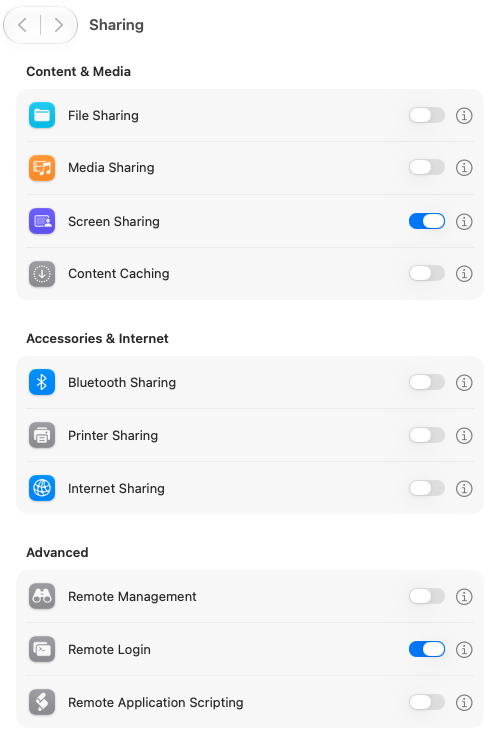
1. Turn on Remote Login
On the Mac, open System Settings → General → Sharing, click the info button next to Remote Login and turn it on. Under Allow access for, choose All users or add your account under Only these users.
Also turn on Allow full disk access for remote users, or macOS can refuse access to Desktop, Documents and Downloads.
2. Add the server
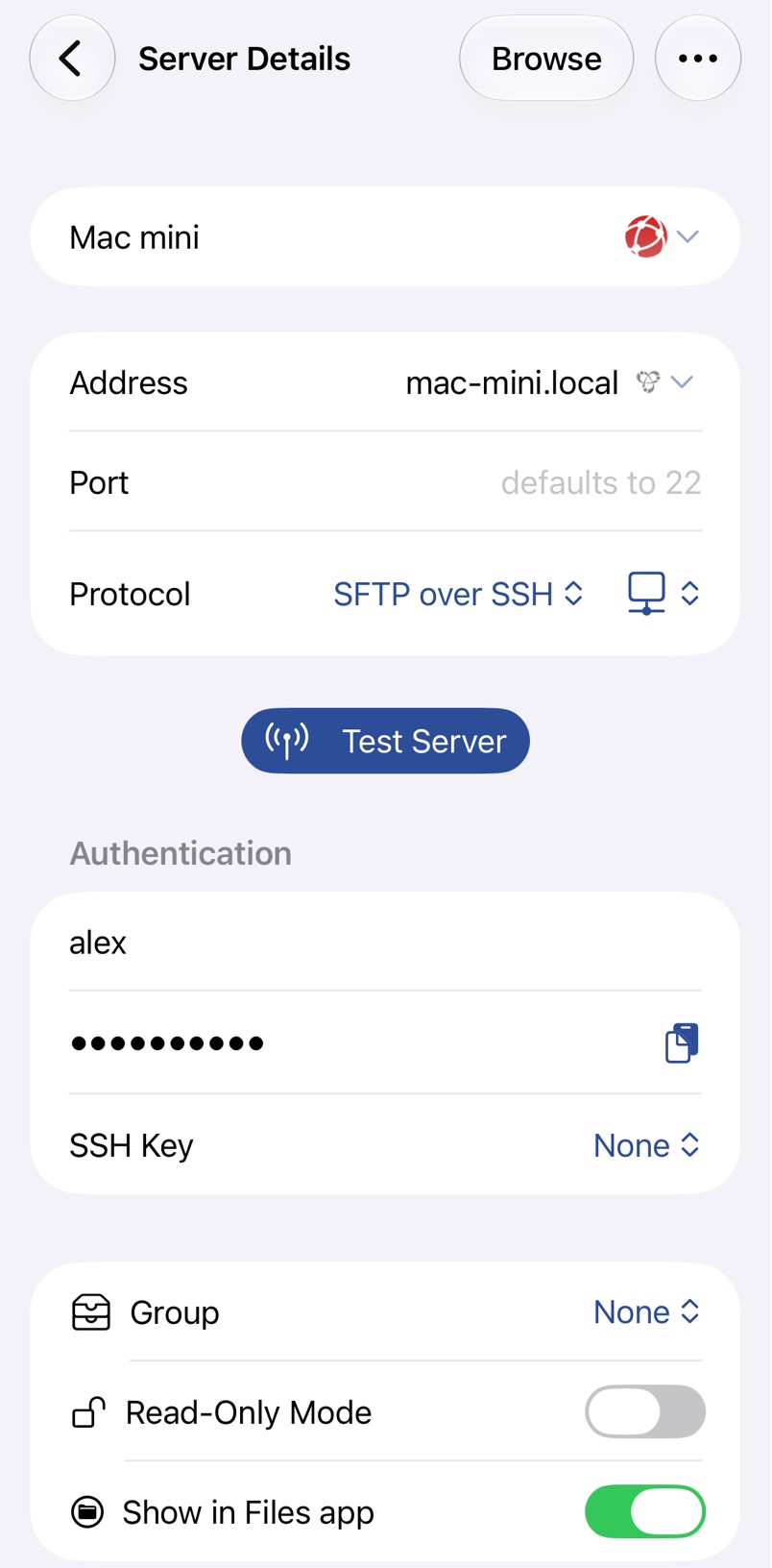
In FTP Files, use the Local hostname from the bottom of the Sharing settings, such as Mac-mini.local, as Address, with SFTP over SSH. Sign in with your account's short name, the name of your home folder, and your Mac password, then approve the host key; see Host Keys. To sign in with a key instead, see SSH Keys.
A .local name only works on the same network. Away from home, use a VPN such as Tailscale; see Connection Errors.
Troubleshooting
- The connection times out: check that Remote Login is on, the Mac is awake and System Settings → Network → Firewall doesn't block all incoming connections.
- Incorrect username or password: use your short account name, not your full name.